

i-Buy
i-Buy is NYU’s online procurement system that facilitates the purchasing and payment process for goods (e.g., equipment, supplies, etc.) and services (e.g., catering, consulting, freelance, guest speakers, honoraria, maintenance, etc.). It serves as a centralized platform where faculty and staff can:
- Browse and purchase items from NYU-approved Catalog / PunchOut Suppliers
- Submit Purchase Requisitions and contracts
- Track order approvals and payments
- Manage Supplier onboarding
- Process invoices, guest reimbursements, Honoraria, Temporary Staffing, etc.
It integrates with NYU’s financial systems to streamline procurement, ensuring compliance with university policies. The i-Buy system is managed by NYU's Procurement & Accounts Payable teams.

Important: Please review the IT procurement, security standards, and software guidelines
Adhering to these policies ensures we maximize university buying power and maintain a secure digital environment.
When to use NYU i-Buy?
You should use i-Buy whenever you need to purchase goods or services on behalf of NYU, initiate a contract request, or process Supplier-related transactions. Specifically, you use i-Buy for:
- Purchasing Goods & Services: Ordering from NYU-approved Suppliers through the catalog, or creating non-catalog Purchase Requisitions
- Submitting Requisitions & Purchase Orders (POs): Creating and routing requests for approval
- Supplier Onboarding: Registering new vendor(s) or updating existing vendor information
- Submitting Contract Requests: Requesting agreements for services, including Travel, Events & Entertainment (TE&E) contracts. [See contract process website for details]
- Processing Invoices & Payments: Submitting, approving, and tracking payments to Suppliers
i-Buy is NYU’s primary procurement platform. It should be used for all non-travel business payments, as well as for processing guest travel reimbursements.
When NOT to use i-Buy?
Payments to Employees and Students
i-Buy should not be used to process payments to employees and students.
Employees are reimbursed via NYU's Travel and Expense (Concur) system under NYU Home (or visit the Faculty & Staff Reimbursements section on Tandon Finance’s website). All other payments to employees (e.g., additional compensation, one-time payment) are paid via payroll (PeopleSync).
Students' reimbursements and payments for awards/prizes are processed via Albert SIS (see Albert SIS: Student Awards, Reimbursement, and Prizes or visit the Student Reimbursements section under Tandon Finance’s website). Student pay for student worker appointments (including federal work-study appointments) is managed via the Wasserman Center for Career Development.
Travel Arrangements
NYU's Travel and Expense (Concur) system should be used for booking all faculty and student travel unless authorized to use an external Supplier for the management of group travel. Travel should be charged to a University Corporate Travel Account (CTA) card, when possible.
Personal Shopping
i-Buy is intended for the purchase of goods and services relating to NYU business activities. All purchases are charged to a university account. i-Buy should not be used for personal purchases with the intent of reimbursing NYU for discounted items.
Accessing i-Buy
Access to i-Buy is approved and facilitated by the Tandon Finance Office. Please email TandonFinanceOffice@nyu.edu with the person's name and NetID to request access.
i-Buy User Roles
Shopper
- Shop for items using PunchOut / Catalog Suppliers, create Requisitions using order forms, payment forms, non-catalog, and Standing Order requests
- Assign draft Carts to Requestor for order placement
- Access Limitations
- Students, Temp. Staff, and NYU Affiliates
Requester
- Shop for items using PunchOut / Catalog Suppliers, create Requisitions using order forms, payment forms, non-catalog, and Standing Order requests
- Can receive Shopping Carts from Shoppers within their department, submit Requisitions, and assign Shopping Carts for approval and order placement
- Issue receipt, if necessary
- View order history and payment information
- Access Limitations
- Tandon Employees
Advance Requester
- Shop for items using PunchOut / Catalog Suppliers, create Requisitions using order forms, payment forms, non-catalog, and Standing Order requests
- Submit Requisitions and assign Shopping Carts for approval and order placement
- Issue receipt, if necessary
- Bypass approvals for orders under $2,500
- Access Limitations
- The Advance Requestor role is a legacy designation limited to employees who held the permission prior to the merger between NYU and Poly. This role is currently unavailable for requesting
Approver
- Shop for items using PunchOut / Catalog Suppliers, create Requisitions using order forms, payment forms, non-catalog, and Standing Order requests
- Review and approve Requisitions for assigned organizations
- Returns or rejects non-compliant or incorrect Requisitions
- Access Limitations
- Non-Grant Fund: Follow the delegated approval authority in line with the Delegation of Authority (DoA) Matrix. Restricted to the Department's director(s) / chair and the Tandon Finance team
- Grant Fund: Department Admin (DA) / Principal Investigator (PI)
Match Exception Approver
- Review and approve invoices that create a "Match Exception (3-way tolerance 10% or $100, whichever is less)"
- Escalates Supplier errors for resolution
- Access Limitations
- Non-Grant Fund: Follow the delegated approval authority in line with the Delegation of Authority (DoA) Matrix. Restricted to the Department's director(s) / chair and the Tandon Finance team
- Grant Fund: Department Admin (DA) / Principal Investigator (PI)
Logging In & Profile Management
Logging Into NYU i-Buy
To access i-Buy, login to NYU Home with your NYU NetID and password. Under Services, click on the "Work" tab. Scroll down and click on NYU i-Buy. Alternatively, i-Buy can be accessed directly via the i-Buy Portal.
The i-Buy system is integrated with NYU's single sign-on (SSO), allowing only authorized personnel like faculty, staff, or approved administrators to access procurement features.
i-Buy Profile Management
The Procurement Process
The procurement process in i-Buy follows a sequence that ensures compliance with the NYU Purchasing Policy and proper approvals.
1. Identification of Need
This initial step is the start of any procurement process, recognizing and defining the requirements for goods or services and ensuring alignment with NYU’s objectives and budget.
2. Sourcing & Supplier Selection
During this stage, potential Suppliers are evaluated and selected based on criteria such as cost, quality, reliability, and compliance. The sourcing process may require competitive bidding based on the total estimated value of the purchase. If a Supplier has not completed the NYU onboarding process, it should be completed at this time.
3. Contract Management / Agreement
4. Requisition / Purchase Order (PO) Creation
A Requisition is initiated in i-Buy to receive the appropriate approvals prior to the Purchase Order (PO) being issued (obtain quote and/or contract). Once the Requisition is fully approved, a PO is created and issued to the Supplier outlining specific details of the order.
5. Receipt of Goods / Services
Upon delivery, the goods and services are inspected and verified against the Purchase Order to ensure they meet the specified standard and requirements. Users are required to complete the receiving process in i-Buy for orders greater than $2,500. A receipt document is an integral part of the 3-way matching process to ensure payments are made in a timely manner. [Tip Sheet - Generating a Receipt]
6. Invoice Processing
A Supplier’s invoice (PO# should be indicated at the top of the invoice) is submitted to nyuinvoices@nyu.edu and reviewed for accuracy and matched with the Purchase Order and receipt (as needed) to confirm the goods and services were received and the Supplier can be paid.
7. Voucher & Payment
A Voucher is created after the invoice is submitted. The final step involves processing the approved invoice and issuing payment to the Supplier.
What is a Requisition?
A Requisition is a formal request for the purchase of goods or services. In i-Buy, you will create a Cart and assign that Cart to your ‘Requestor’. The ‘Requestor’ will review the Cart and place the order on your behalf. Once the order is placed, the Cart then becomes a Requisition. Carts and Requisitions are assigned unique numbers in i-Buy so you can search for them later on. Your Cart will be assigned a 9-digit number in i-Buy once it is created. Your Cart number will become the Requisition number once the ‘Requestor’ places the order.
What is a Voucher?
A Voucher is an internal document in the University's i-Buy system that represents the final authorization to pay a Supplier. It can also be a document that the system has created when an internal payment, such as an honorarium, guest reimbursement, or a non-NYU prize or award, etc., is being paid. The automated system will review the details on the invoice and route the invoice to Accounts Payable for payment processing.
In order for an invoice to get paid against a PO, Suppliers must list the PO number on the invoice very clearly, and they need to email the invoice(s) to nyuinvoices@nyu.edu as a single PDF attachment.
PunchOut orders typically do not require invoicing. Many PunchOut Suppliers use a form of electronic invoicing and i-Buy will send the Supplier payment without the need for a paper invoice.
Purchase Orders
What is a Purchase Order?
The official, legally binding document created from a Requisition and presented to an external Supplier with the total quantity, item details, and shipping information to buy goods and services.
Types of Purchase Orders
PunchOut / Catalog Orders
The i-Buy Marketplace provides users with access to contracted, strategic Suppliers through a modernized shopping experience. PunchOut / Catalog Orders allow users to shop directly from a range of NYU's enabled Supplier’s websites and catalogs in which NYU and the Supplier have established a connection for exclusive University pricing and discounts. Users access the supplier PunchOut / catalogs directly on the NYU i-Buy Homepage by clicking the tile with the Supplier's logo.
PunchOut sites retain the look and feel of the Supplier’s regular public website; however, the checkout will result in the products being returned to your active Shopping Cart in i-Buy.
[List of PunchOut / Catalog Suppliers in i-Buy]
Please Note:
- PunchOuts / catalog sites are created and maintained by each Supplier individually. As a result, the exact steps of how to search, shop, and add items to your Shopping Cart may vary. Make sure to carefully read and follow the steps listed within each Supplier’s site.
- Product pricing and availability may vary between the Supplier's public website and NYU's catalog.
- For some PunchOut / catalog sites, like Amazon Business, you must have a default address added to your user profile in order to select your address as the designated delivery location
- You cannot combine PunchOut / catalog orders with other types of others in the same Shopping Cart
- Do not shop Supplier’s regular public website outside of NYU’s catalog
Creating a PunchOut / Catalog Order:
- Login to NYU Home with your NYU NetID and password. Under Services, click on the "Work" tab. Scroll down and click on NYU i-Buy.
- From the NYU i-Buy home page, click the Supplier’s icon to begin the PunchOut session.
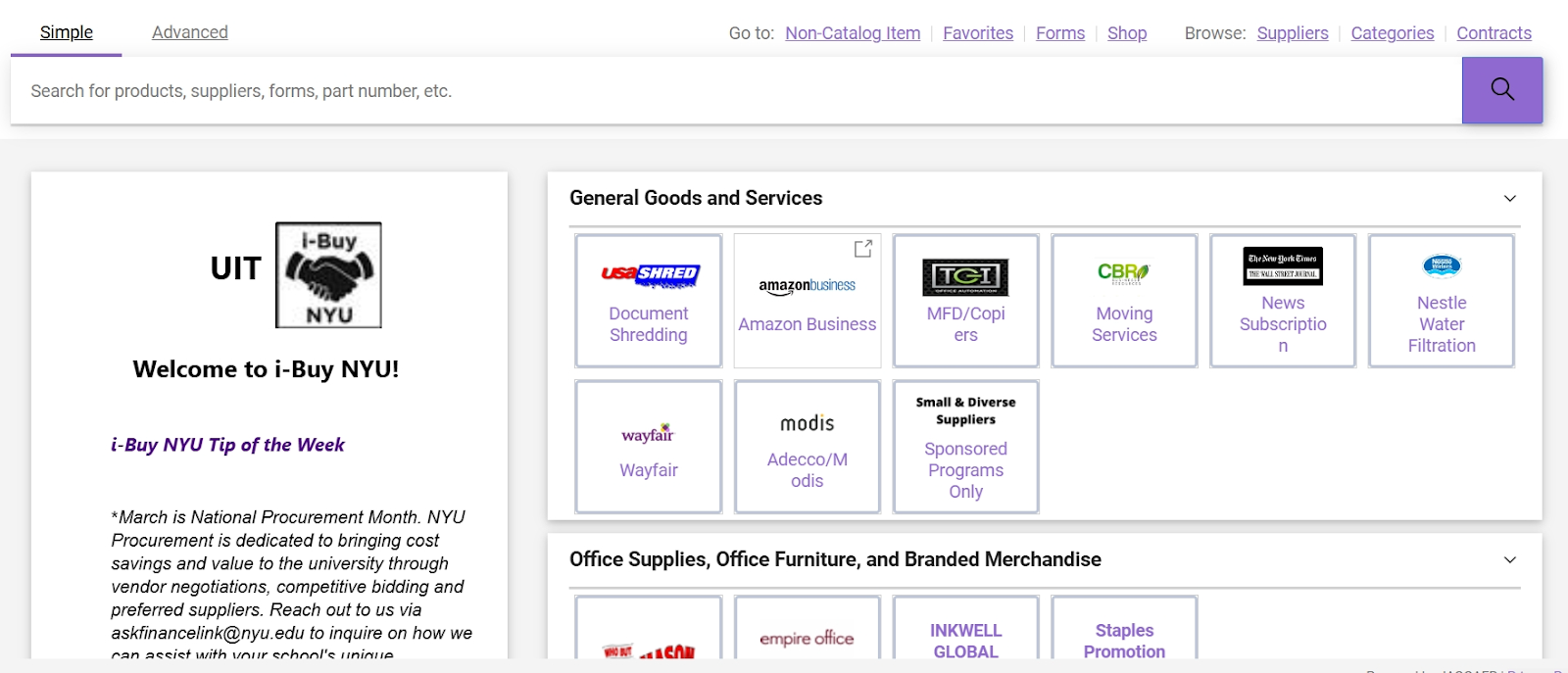
- The PunchOut opens in a new browser window (don’t worry, when you’re done shopping within the Supplier’s site, you’ll be returned to the i-Buy window).
- Search in the Supplier’s catalog for items, enter the quantity, and add it to your Cart. Continue to shop and add items to your Cart as necessary.
- When you’re ready to checkout, navigate to your Shopping Cart and submit your Cart on the Supplier’s site.
- You will then be redirected back to your active Shopping Cart in i-Buy, where the PunchOut items now appear.
Need to add more items to your Shopping Cart? Go to the Supplier’s PunchOut catalog and repeat this process. Your additional items will appear in your Shopping Cart once completed.
Please Note: The Amazon Business account must be set up for orders placed under the NYU i-Buy system. All users must adhere to the guidelines to ensure compliance with university procurement policies.
Non-Catalog Orders
A non-catalog order is needed when purchasing goods or services that are not available through NYU's PunchOut / catalog in i-Buy. This typically includes:
- Specialized Goods & Services: Items that are not listed in the standard catalog, such as unique equipment, software, consulting services, or research materials, etc.
- Custom Orders: Items that require customization, special specifications, or quotes from the Supplier
- Contracts & Service Agreements: When purchases involve a Service Agreement, Statement of Work (SOW), or other legal agreements where the cost of service is the same amount over a fixed billing period (for example, $100/month for 12 months). If the cost of service varies per billing period, a Standing Order should be created instead of a non-catalog order
Please Note: In instances where services are being provided, the non-catalog order PO should be set up using a contract or quote BEFORE services are rendered.
You will need the following information to submit a Non-Catalog Order:
- Supplier Name
- Description of services or goods being provided
- Quote, Invoice, or Contract
- Pricing Details: Unit cost, quantity, and total amount
- Accounting / Chartfield Information: Budget account to be charged
Creating a Non-Catalog Order:
- Login to NYU Home with your NYU NetID and password. Under Services, click on the "Work" tab. Scroll down and click on NYU i-Buy.
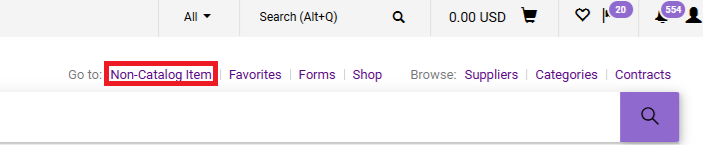
- From the NYU i-Buy home page, click the the Non-Catalog Item link to begin the creation of the non-catalog order.
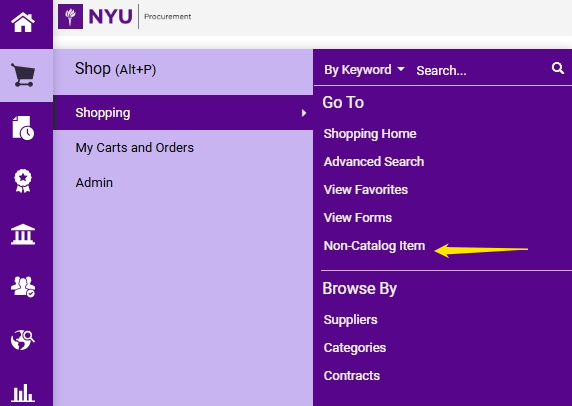
You can also access the Non-Catalog Order form from the Shopping Cart icon on the left navigation panel (see below)
Clicking on either Non-Catalog Order form link will open a separate order form which includes required fields in order to submit the Non-Catalog order.
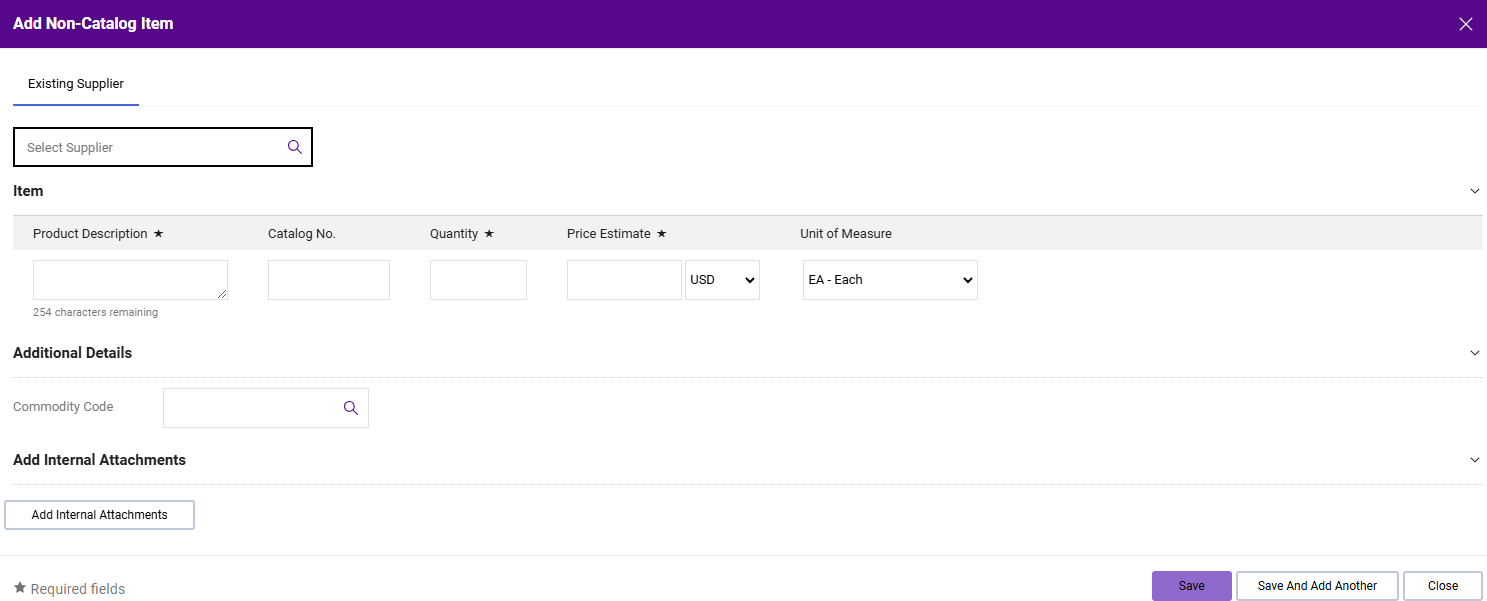
- In the Non-Catalog Order form, you will be required to fill in the below fields:
- Production Description: Describe the services or goods being provided
- Quantity: With Non-Catalog orders, the quantity is equivalent to the number of invoices you anticipate receiving. For example, if you anticipate 2 invoices at $1,500 each and totaling $3,000, you will input 2 for the quantity and $1,500 for the total with a unit measure of each. This will generate a non-catalog order for a total of $3,000.
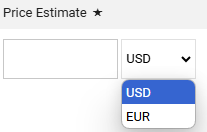
- Price Estimate: Enter the estimated amount expected per invoice.
Most vendors will default to USD as the currency type. If you have a vendor that accepts payment in an alternate currency (e.g., AUD, EUR, GBP, etc.), you will see a currency box with a drop-down option next to the price estimate field with the alternative currency that vendors accept. If a vendor provided a quote or invoice in an alternative currency and the drop-down box does not appear in the order form after you have searched the vendor name for the order, you will need to submit a Supplier Update Request to have the alternative currency option added.
- Unit of Measure: We recommend leaving the unit of measure as EA- Each.
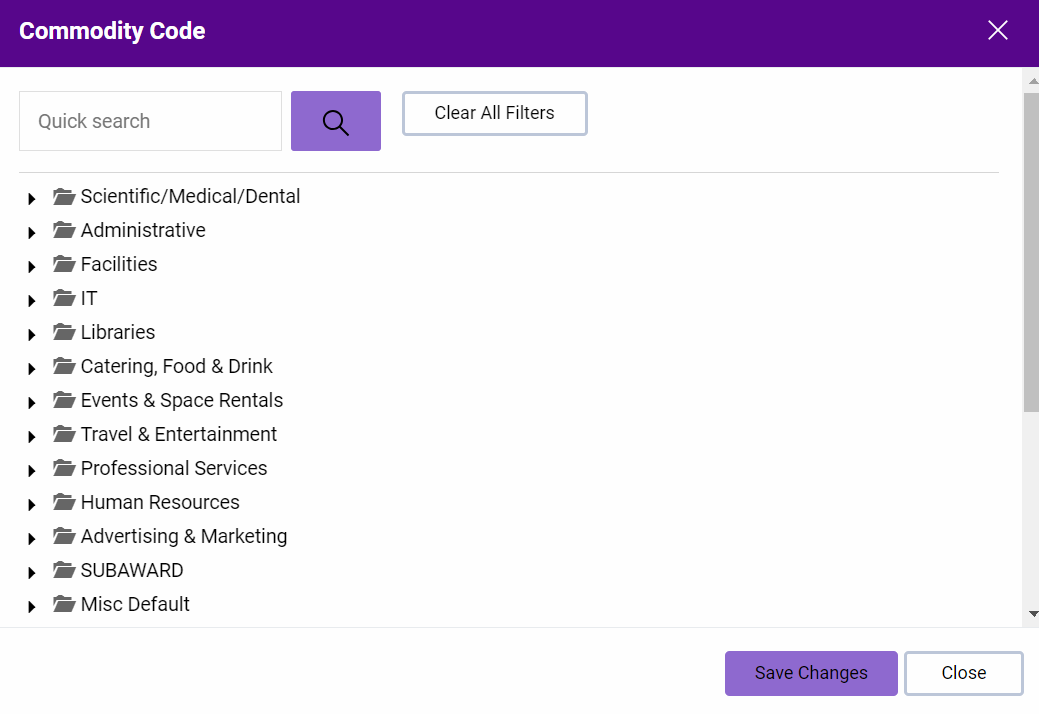
- Commodity Code: Use the icon to search the commodity code directory.
- Internal Documents: A copy of a quote, an invoice, or a contract is required as supporting documentation.
- (OPTIONAL) In some instances, you may need to add multiple lines to your non-catalog order. Each line on the order allows you to attribute a separate commodity code, which links to a separate account code. Therefore, in instances where you have a quote or invoice where a portion of the invoice is for a good or service, and the other portion is for shipping, you may want to expense the charges for shipping to a separate account code. You can add another line to the order to split charges.
- Once you have adjusted the order as needed, you will then be redirected to your active Shopping Cart in i-Buy, where the non-catalog order will appear.
- Now that the items are in your Shopping Cart, assign/submit the finalized Cart.
Please Note:
- Additional line items can be added by clicking Save and Add Another located at the bottom of the Non-Catalog Request form.
- Click Save to deposit all non-catalog items into your Cart.
- When you’re ready to checkout, click the Cart icon located in the top-right and then View My Shopping Cart.
- Need to add more items to your Cart? Click Add Non Catalog Item and repeat the item entry process. To modify a line item, click Product Description, update the item, and click Save.
Cart Submission & Checking Status
Submitting Shopping Cart for Approval
The checkout, or Requisition process is where Requestors confirm key details such as the selected items, quantities, and the supplier. During this process, Requesters may also be prompted to provide or verify important order information such as the ship-to address, billing information, and Chartfield / accounting information. Once the order details are confirmed, the Requisition is submitted for approval and automatically routes to the relevant Approvers in the workflow.
Checking Your Requisition Status
- Login to NYU Home with your NYU NetID and password. Under Services, click on the "Work" tab. Scroll down and click on NYU i-Buy.
-
Locate your Requisition. From the NYU i-Buy home page, you can either:
- Enter the Requisition Number in the quick search box (located at the top right-hand corner of the homepage) to find the Requisition

- OR, Click on the profile icon to see your recently completed Requisitions
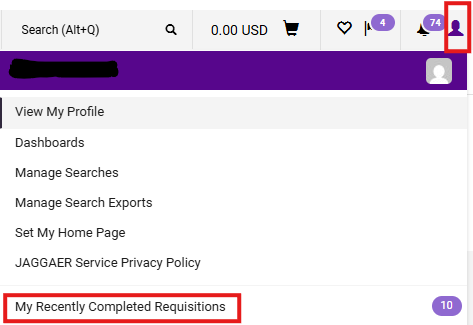
- Once you have located the Requisition, click on the Requisition Number to view the details.
- Under the "Summary" tab, you will see another summary section on the right-hand side that includes a "What's Next?" subsection.
- If the summary section is hidden, click on the logo to unhide it.
- Under "What's Next?", you will see the complete workflow for the Requisition. Once a Requisition has completed its workflow, it will become a Purchase Order (PO), and a new system-generated PO number will be assigned.
Please Note: All PO numbers except Standing Orders will begin with the letters iB followed by a series of numbers. Standing Order POs will begin with the letters SiB followed by a series of numbers. iB POs rollover from fiscal year to fiscal year based on PO category (details will be shared during the year-end closing alert or PO Open Balance email), whereas SiB POs do not.
Prepayment Requests & Recurring Payments
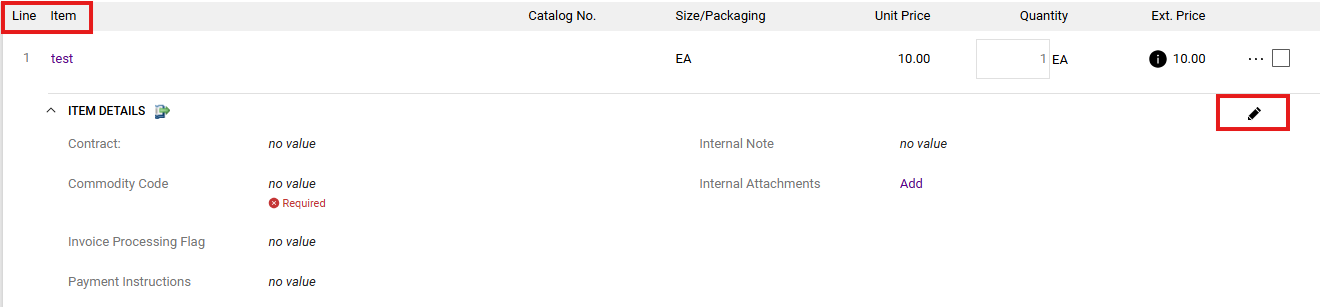
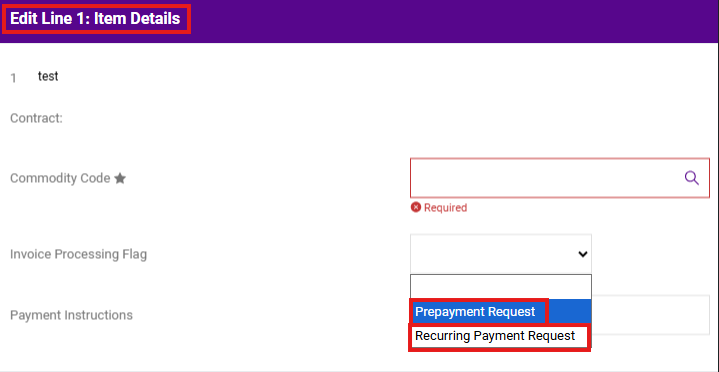
Sometimes, Suppliers will require a schedule of payment, prepayment, or deposit in advance (before items are received or before services are rendered). This can be accomplished by changing the ‘Invoice Processing Flag’ for that particular item in your Shopping Cart (see screenshots below). This will trigger an additional set of approvals from Procurement and Accounts Payable. [Tip Sheet - Recurring and Prepayment Tip Sheet]
What Happens After The Cart Is Submitted?

Order Forms for Special Purchasing Scenarios
Change Order
A Change Order is an amendment to an existing Purchase Order (PO) that modifies the original terms of the PO without creating a new one. At NYU, a Change Order is used to reflect adjustments to a PO after it has completed its original workflow.
Examples of changes that may require a Change Order:
- Increasing the total value of the PO to accommodate additional goods or services beyond the original amount
- Decreasing or closing out the PO when the full amount will not be used and you want to release remaining encumbered funds
- Changing the chartfield the PO is charged to
Please Note:
- A Change Order may only be requested after the original PO has fully completed its workflow and reached a “Completed” status in the system
- Change Orders cannot be submitted for POs in “Closed” or “Soft-Close” status
- You cannot change the Chartfield (department code, project code, etc.) on a PO line if a Voucher has already been processed against it
You will need the following information to submit a Change Order request:
- Original PO Number: PO must be open and cannot be in “closed” or “soft-close” status
- Supplier Name: Must match name of Supplier on original PO
- Reason for Change: Why are you adjusting the PO?
- Details of Change: What changes are you making to the PO?
- Type of Change: Increase, Decrease, Edit Chartfield, Close PO etc.
- Commodity Code: Must match the commodity code used on original PO
- Revised / New PO Total: After the change (e.g., increase or decrease) is made, what is the new PO total
Creating a Change Order Request
- Login to NYU Home with your NYU NetID and password. Under Services, click on the "Work" tab. Scroll down and click on NYU i-Buy.
-
Ensure your active i-Buy Cart is empty.
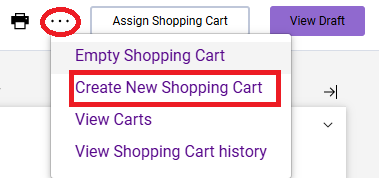
You may encounter the below error when submitting a Change Order if other miscellaneous items are already in your Cart (e.g. PunchOut items, Non-Catalog Request, Catalog Order)
To resolve, you must create a new Cart by navigating to the current active Shopping Cart. Click the "…" at the top right corner > Create Shopping Cart
-
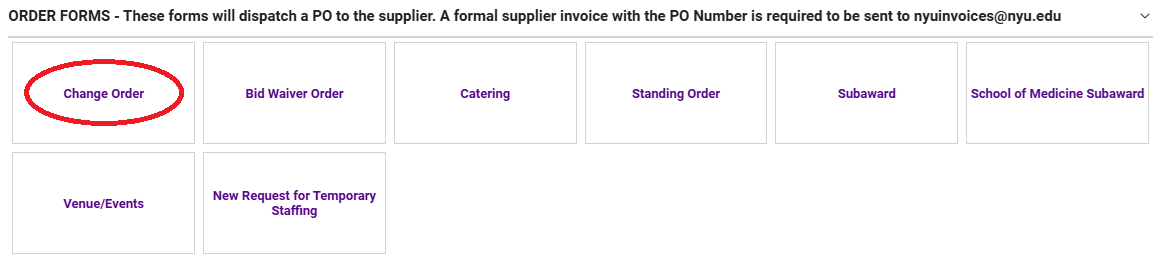
From the NYU i-Buy home page, click the Change Order link under the "ORDER FORMS" section to begin the creation of the Change Order request
-
A separate window will open with the Change Order form. Follow the below guidance to complete the form.
Tip: To easily access information from the original PO, open another instance of i-Buy in a separate tab with the original PO and toggle between the two windows.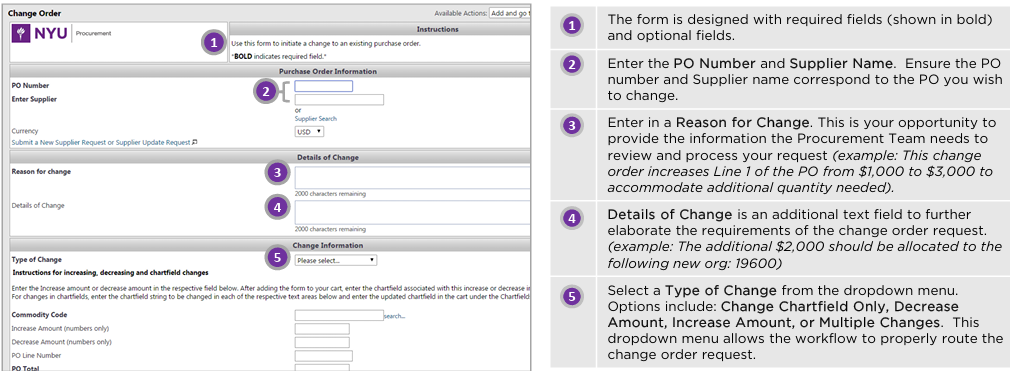
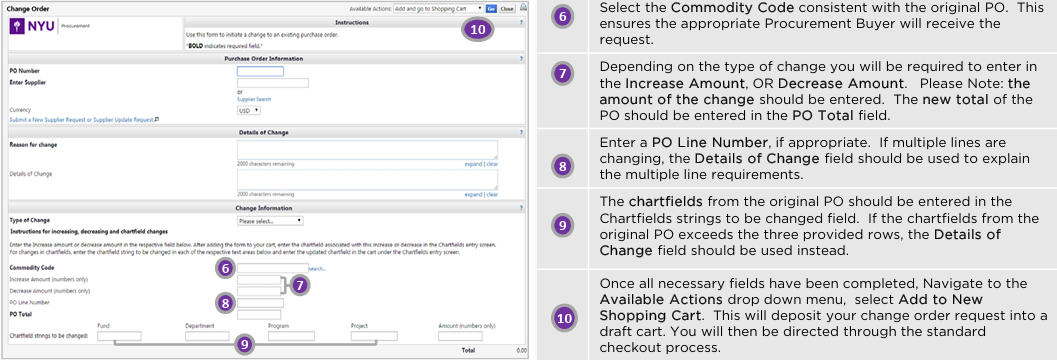
- Once the items are in your Cart, submit the Shopping Cart for approval.
[Tip Sheet - Submitting a Cart for Approval]
[Tip Sheet - Change Order Requests]
Closing Purchase Orders
Closing a Purchase Order (PO) is a critical step to release encumbrances (funds that are "set aside" but not yet spent) back into your budget.
When to Close a Purchase Order
You should initiate the PO closure process in the following scenarios:
- Final Invoicing Complete: You have received and paid the final invoice from the Supplier, and are certain no further charges are forthcoming.
- Project Completion: The services or goods have been fully delivered, and the remaining balance on the PO is no longer needed.
- Grant/Project Expiration: For sponsored programs, DAs (Department Administrators) should identify projects expiring within 90 days and close associated POs to ensure all costs are appropriately charged before the final financial report.
- Order Cancellation: If you have decided not to move forward with a purchase (after confirming with the vendor that the order is cancelled on their end)
When You DON'T Need to Manually Close POs
- Automatic Closure: POs that are fully invoiced and fully received (if receiving is required) will be automatically closed by the system.
- Catalog / PunchOut Orders: You cannot use a Change Order to close these. If a change is required, the Requestor typically needs to cancel the order before it is fulfilled.
How to Close a Purchase Order
- Login to NYU Home with your NYU NetID and password. Under Services, click on the "Work" tab. Scroll down and click on NYU i-Buy.
- Locate your Purchase Order. From the NYU i-Buy home page, you can enter the PO number in the quick search box (located at the top right-hand corner of the homepage) to find the PO

- Once you have located the PO, click on the PO number to bring up the PO details
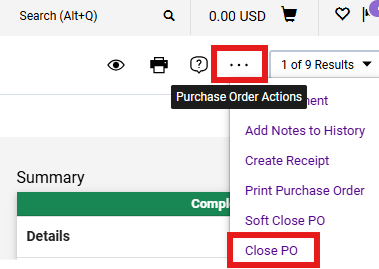
- Click on the 3 dots
- Click on “Close PO”
-
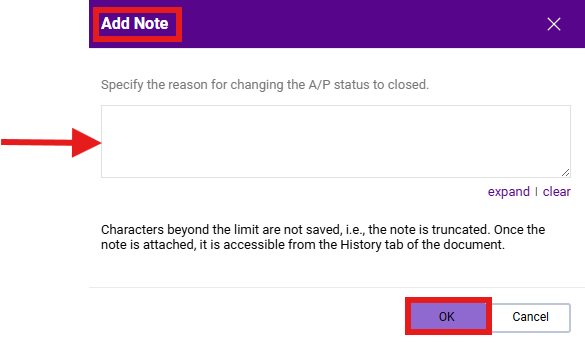
Add a note for the closure
Change of PO Ownership
A change of ownership of a PO to a different individual is allowed for the following reasons:
- The original Requester is no longer with the department or university
- The PO needs to be managed by a different individual
Please email your request to TandonFinanceOffice@nyu.edu (provide the PO number for which you need visibility)
Searching for a Supplier
- Login to NYU Home with your NYU NetID and password. Under Services, click on the "Work" tab. Scroll down and click on NYU i-Buy.
-
Begin by searching to see if your Supplier exists. Click on the Supplier Management icon, hover over Manage Supplier, and click on "Search for a Supplier".
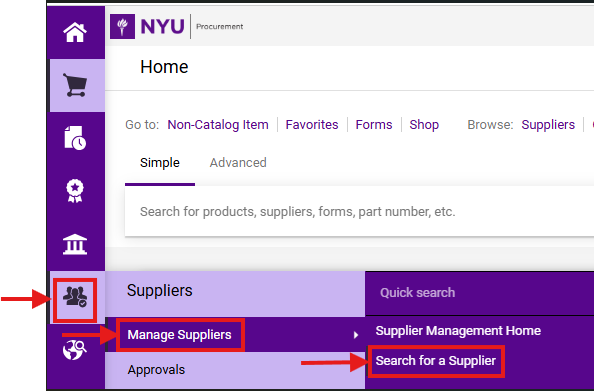
- You will be directed to the Quick Search screen. Search by the Supplier’s name and click "Go".
- Suppliers matching your search criteria will appear. A green checkmark indicates active NYU Suppliers that are enabled for procurement. A red cross indicates inactive suppliers that are not enabled for procurement. You have the option to refine your results further using the quick filters option or by manually adding filters.
- A Supplier listed as active can be used to create a Requisition and generate a PO for services.
- A Supplier listed as inactive must be reactivated before it can be used to create a Requisition and before services are rendered.
- If your Supplier does not appear in search results, you must submit a new Supplier request.
Onboarding & Supplier Updates
Onboarding a New Supplier (Entities & Individuals)
Before You Start:
NYU has onboarded tens of thousands of Suppliers that are already available for purchasing goods and services in a wide range of commodity categories.
To support discretionary spending, sourcing strategies, and tail spend control, please evaluate whether it is necessary, appropriate, and reasonable to invite a new Supplier based on the following:
- Can you make the purchase from the existing i-Buy Marketplace Suppliers (catalog / PunchOut)?
- Can you make the purchase from existing Suppliers in the i-Buy Supplier Network?
- Can you make the purchase through an existing University Strategic Contract?
Please Note: The NYU Supplier Management Team runs a periodic process whereby any Supplier without a PO or payment issued for 18 consecutive months is deactivated in the i-Buy system. This helps maintain a clean database with the most frequently used active Suppliers. It is advised that you first conduct a thorough search for your Supplier in the database as they may have already completed the onboarding process and just require reactivating.
New Suppliers must exist in the i-Buy Supplier database in order to create a Requisition / PO, Contract, and for payments to be processed via the system. To be enrolled in the i-Buy Supplier database, an NYU administrator must submit a new Supplier registration request (see below)
- Login to NYU Home with your NYU NetID and password. Under Services, click on the "Work" tab. Scroll down and click on NYU i-Buy.
-
Click on the Supplier Management icon. Hover over Requests, and click on Submit Supplier Requests
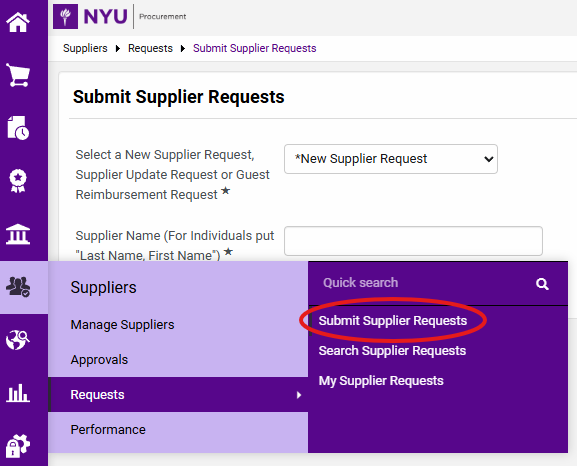
-
A Submit Supplier Request dialog box will appear. Within the dropdown menu, select New Supplier Request. In the Supplier Name field, type the full name of the Supplier. Ensure all required fields are populated and click Submit.
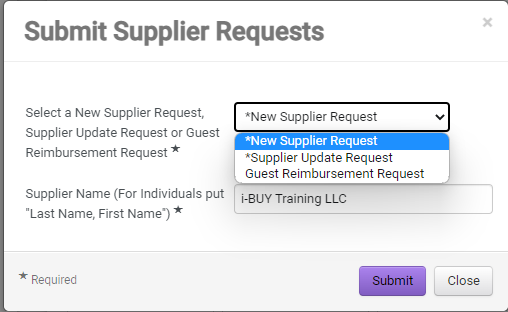
-
You will be redirected to a short Supplier questionnaire. Please read the instructions carefully, then click on Next.
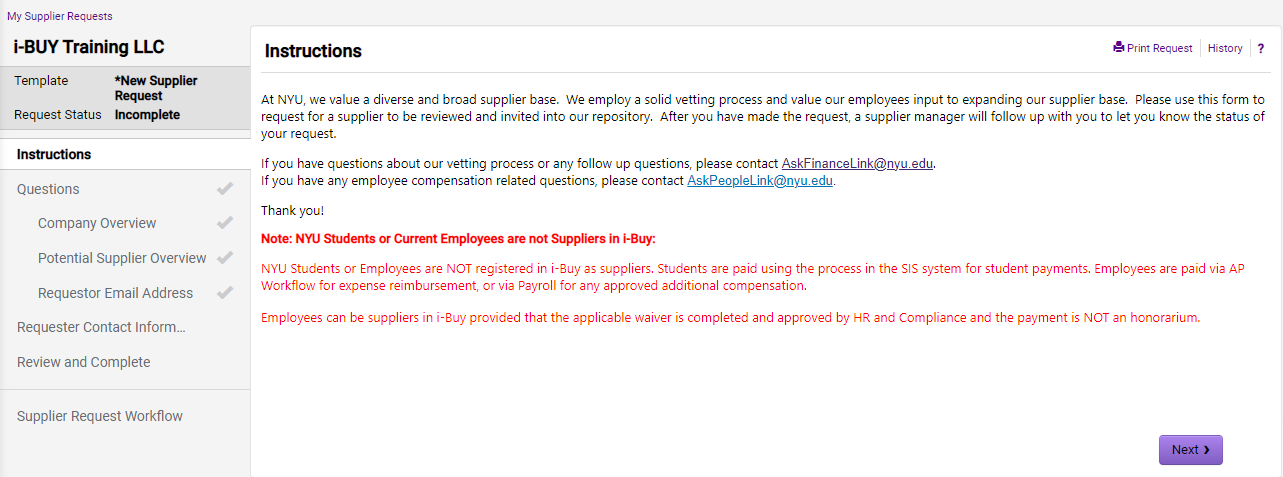
-
Answer all required questions within the questionnaire. The questionnaire has three parts (Company Overview, Potential Supplier Overview, and Requester Email Address). Once all required fields are populated in each part of the questionnaire, click Next to proceed. If you would like to save the questionnaire and return to it later, click on Save Progress.
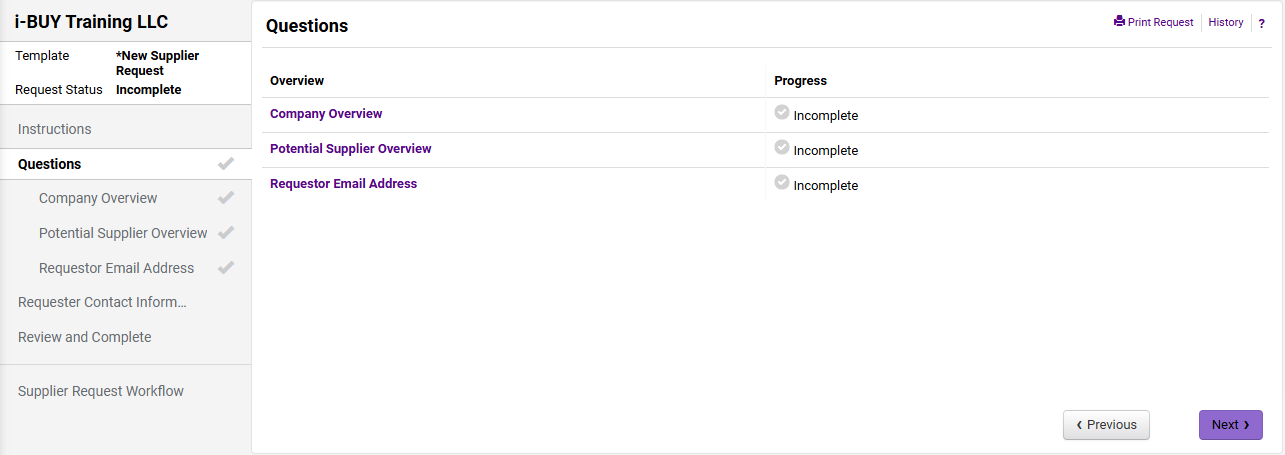
- The Requester's contact information will auto-populate with your name, NYU email address, and i-Buy HR department information. Click Next to proceed.
-
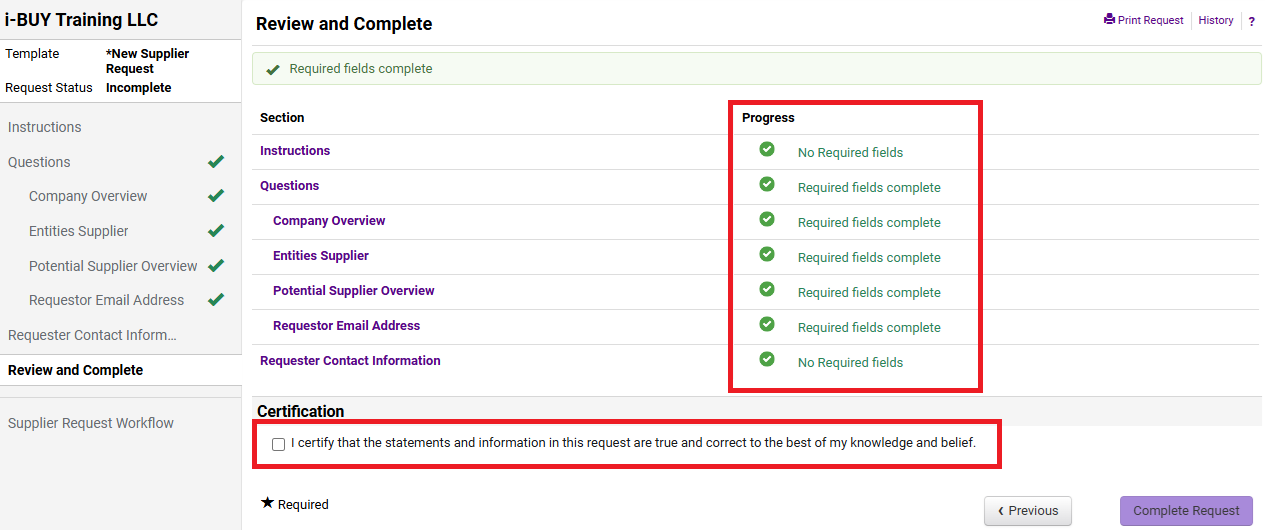
You will be asked to certify the information provided in the Review and Complete section. Click on the checkbox to certify your submission, then click Complete Request.
- NYU Procurement will review the request and, if approved, will invite the Supplier via email to create an i-Buy Supplier account and complete profile registration. Should the Supplier have questions regarding their onboarding and require more information, they can review the Supplier registration tip sheets (linked below), or visit the NYU Support Center by selecting the “Finance” tile, or call 212-998-1111.
- After the Supplier completes and submits their Supplier profile, the NYU administrator who submitted the request will receive an email notification that the Supplier completed their profile, which is now with Procurement for review.
- Once Procurement reviews and verifies the information entered by the Supplier, the NYU administrator will receive another email notification stating that the Supplier is now active for use in i-Buy.
[Tip Sheet - Honoraria and Expense Reimbursement Registration Steps]
[Tip Sheet - Entity (Companies / Organizations) Registration Steps]
[Tip Sheet - Independent Contractor & Individual Registration Steps]
Submitting a Supplier Update Request
Suppliers not enabled for procurement are marked by a red cross, which indicates their inactive status. An inactive Supplier must be reactivated before it can be used to create a Requisition, submit a contract, and/or before services are rendered.
- Login to NYU Home with your NYU NetID and password. Under Services, click on the "Work" tab. Scroll down and click on NYU i-Buy.
-
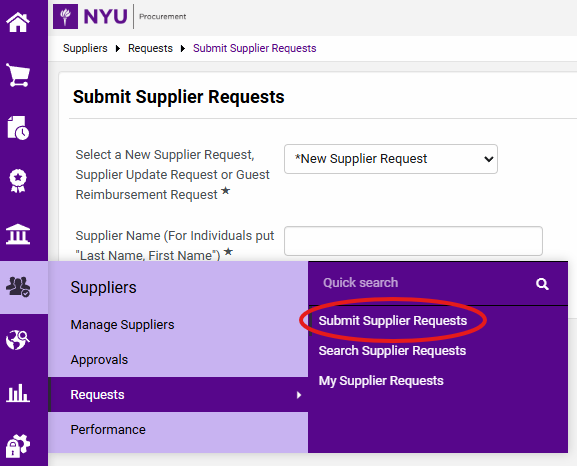
Click on the Supplier Management icon. Hover over Requests, then click on Submit Supplier Requests
-
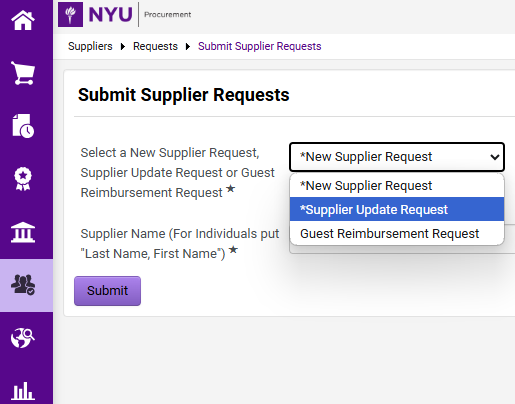
A Submit Supplier Request dialog box will appear. Within the dropdown menu, select Supplier Update Request. In the Supplier Name field, type the full name of the Supplier. Ensure that all required fields are populated, then click Submit.
-
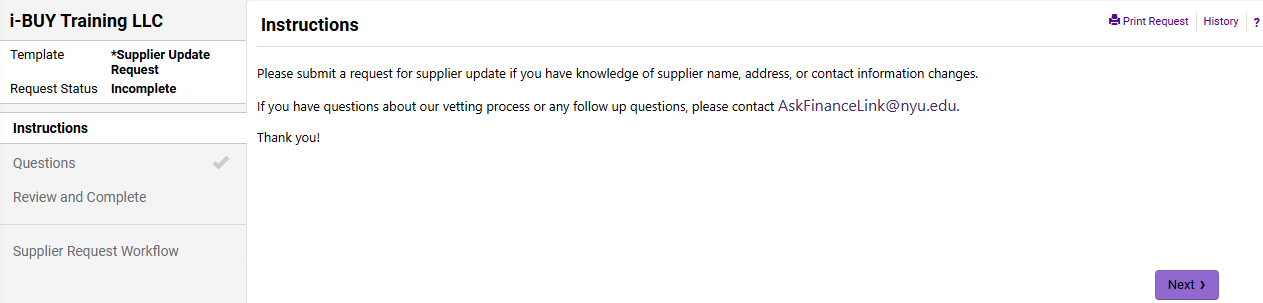
You will be directed to a short Supplier questionnaire. Read the instructions carefully, then click Next.
- Answer all the required questions. The questionnaire has only one part (Company Overview). Once all required fields are populated in this part, click Next to proceed. If you would like to save the questionnaire and return to it later, click on Save Progress.
-
You will be asked to certify the information provided in the Review and Complete section. Click on the checkbox to certify your submission, then click Complete Request.
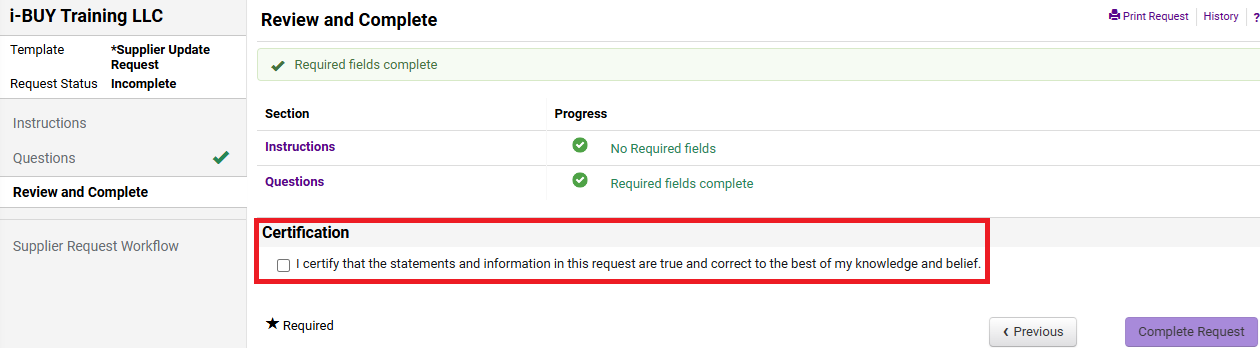
- NYU Procurement will review the request and, if approved, will send an email to the Supplier noting that they're being requested to update their Supplier profile. The email will include a link to the i-Buy Supplier Portal. The Supplier will need to log in with their credentials to access the portal and update their profile. Should the Supplier have questions regarding updating their profile and required information, they may review the below Supplier registration tip sheets, or visit the NYU Support Center by selecting the “Finance” tile, or call 212-998-1111.
[Tip Sheet - Entity (Companies/Organizations) Registration Steps]
[Tip Sheet - Independent Contractor & Individual Registration Steps]
[Tip Sheet - Honoraria and Expense Supplier Registration Steps]
Please Note: The NYU i-Buy Supplier Portal is powered by JAGGAER, and there are certain tasks that the NYU Procurement Team cannot resolve. If the Supplier is experiencing technical issues or is having trouble logging in, contact the JAGGAER Supplier Network Support at 1-(800)-233-1121
- After the Supplier completes the updates to their profile and submits their Supplier profile, the NYU administrator who submitted the request will receive an email notification that the Supplier completed their profile update, which is now with Procurement for review.
- Once Procurement reviews and verifies the information entered by the Supplier, the NYU administrator will receive another email notification stating that the Supplier profile is updated and is now active for use in i-Buy.
Please Note: If a Supplier's information has changed in any way (e.g., new address, change of name, change of tax information, etc.), a Supplier Update Request must be submitted instead of a Supplier Reactivation Request.
When to Request a Supplier Update?
A Supplier should be updated in i-Buy when any of the following changes occur:
- Change in banking or payment information
- If the Supplier has updated their bank account details for ACH or wire payments, their payment information must be updated to ensure correct transactions. Alternatively, if a Supplier wants to change their payment preference, a Supplier update request can be used to initiate the process.
- Change in legal name or business structure
- If the Supplier’s legal business name has changed due to mergers, acquisitions, or rebranding, an update is required to align with tax and compliance records.
- Change in address or contact information
- If the Supplier has moved locations or changed their remittance address, primary email, or phone number, their profile must be updated to ensure accurate communication and payment processing.
Please Note: When a Supplier is registered in i-Buy, they create a registration profile in the i-Buy Supplier Portal. At any time, a Supplier may log in to the portal and adjust their Supplier profile without the need for the submission of a Supplier update request by an NYU administrator. This is always the preferred method as it reduces administrative burden and processing time.
Viewing the Status of your Supplier Request
- Login to NYU Home with your NYU NetID and password. Under Services, click on the "Work" tab. Scroll down and click on NYU i-Buy.
-
Click on the Supplier Management icon. Hover over Requests, then click on My Supplier Requests.
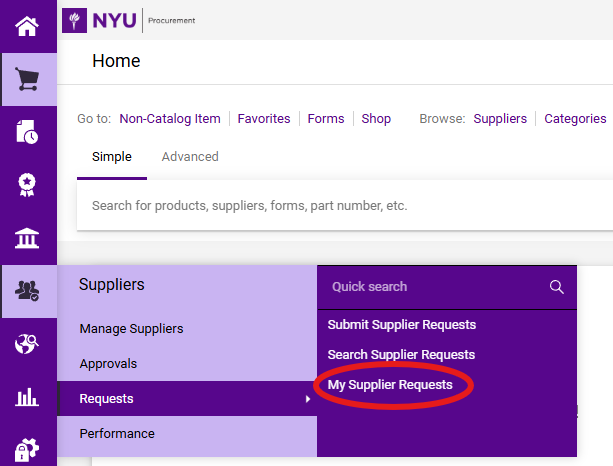
-
You will observe one of the following statuses:
Request Status
- Approved: The Supplier request has been approved by the Supplier Management Team in Procurement, and the Supplier has been sent an invite to register
- Incomplete: The request has not been submitted to the Supplier Management Team in Procurement
- Under Review: The request is being reviewed by the Supplier Management Team in Procurement
- Returned / Rejected: The Supplier Management Team did not approve the request due to a duplicate request or another reason. View the history and comments to view more information
Registration Status
- No Status Available: An invitation has not yet been sent to the Supplier by the Supplier Management Team
- Invited: The invitation has been sent to the Supplier by the Supplier Management Team
- In Progress: The Supplier has started completing the application, or the application has been returned to the Supplier. In both situations, the Supplier still needs to complete the registration
- Profile Complete: The Supplier has submitted their application and it is in the Supplier Management Teams queue for review/approval
- Approved: The application has been approved by the Supplier Management Team in Procurement
- Rejected: The application has been rejected by Supplier Management in Procurement. Please see the History tab of the Supplier profile to learn more
To follow-up on the status of your request, or if you have questions, please visit the NYU Support Center by selecting the “Finance” tile, or call 212-998-1111.
Approving a Requisition
The approval process is crucial in ensuring that all purchase requests align with organizational policies and budgetary constraints. By effectively managing Requisition approvals, you help facilitate a smooth procurement process and maintain financial accountability.
All Requisitions in i-Buy require approval prior to a Purchase Order being created and sent to a Supplier. The Department approval requirements are based on the Delegation of Authority (DoA) matrix. It is the department’s responsibility to maintain their DoA approvers to ensure Requisitions are approved promptly. The DoA matrix and policy is managed and maintained by the Office of the Controller. Changes or updates to the DoA database are managed for each school and unit by the Data Stewards of the specific school or unit, which is typically the Fiscal Officer and/or their respective team. Reach out to TandonFinanceOffice@nyu.edu if you have any questions.
Important Note: There is no out-of-office delegation functionality for Approvals. You must have a backup established in your Delegation of Authority (DoA) approval structure. If there is no backup approver, a Fiscal Officer can grant a temporary delegation of authority to someone in your department so they can approve transactions while you are on vacation. (It is highly suggested to have 2 Level 5 i-Buy approvers for your department org.)
[Tip Sheet - Approving a Requisition]
[Tip Sheet - Requisition Approvals via Email]
[Tip Sheet - Managing Your Approval Queue]
There are two options for navigating to your approvals:
Option 1
Click Orders & Documents > Approvals > Requisitions to Approve
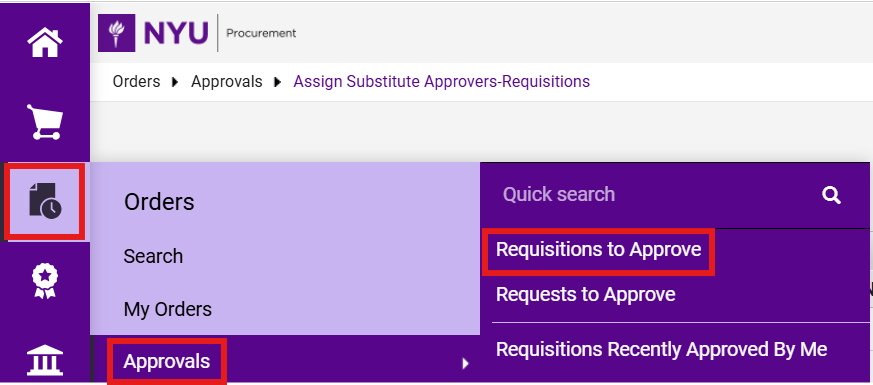
Option 2
1. Click Action Items > My Assigned/Unassigned Approvals
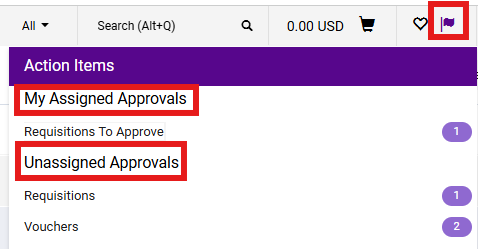
2. Within "My Assigned Approvals", expand the "My PR Approvals" folder to view details of all Requisitions assigned to you

3. You can also click "Unassigned Approvals" to access unassigned Requisitions that reside in your department’s queue. Click on the Assign button to add a Requisition to your queue for further review and action
4. Click the Requisition Number to review

5. The Requisition summary screen will appear

- Requisition: Allows access to a summary view, as well as additional details specific to Shipping, Billing, Chartfields, Notes and Attachments, Supplier Information, and Taxes/Shipping & Handling
- Comments: View and add comments. All comments are delivered to the recipient’s NYU email address. The comment is timestamped and historically recorded on this tab with the Requisition
- Attachments: Attachments associated with the Requisition
- History: Systematic timestamp of every event that occurs against the Requisition
- Chartfield: Allows Approver to review and modify the fund, department, program and/or project assigned to a Requisition
6. After you have conducted a sufficient review of the Requisition, select "Approve/Complete Step and Show Next" under the Available Actions menu and click Approve.
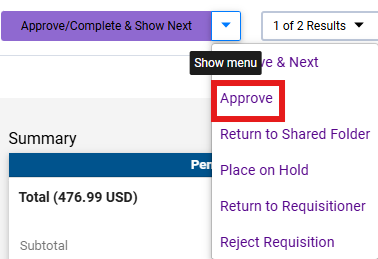
7. The requisition has now been approved and will be systematically routed to the next step in the workflow. To learn how to return or reject a requisition, please refer to the Returning / Rejecting Requisition Tip Sheet.
Bids & Bid Waiver
Competitive Bidding Requirements
Competitive bids are required whenever a planned purchase of goods and services is greater than $10,000. This ensures fairness to all bidders and that your pricing will be competitive. (While competitive bidding is not required for purchases less than $10,000, it is strongly encouraged that departments compare and evaluate potential Suppliers to achieve the greatest total value.)
Competitive Bidding Thresholds
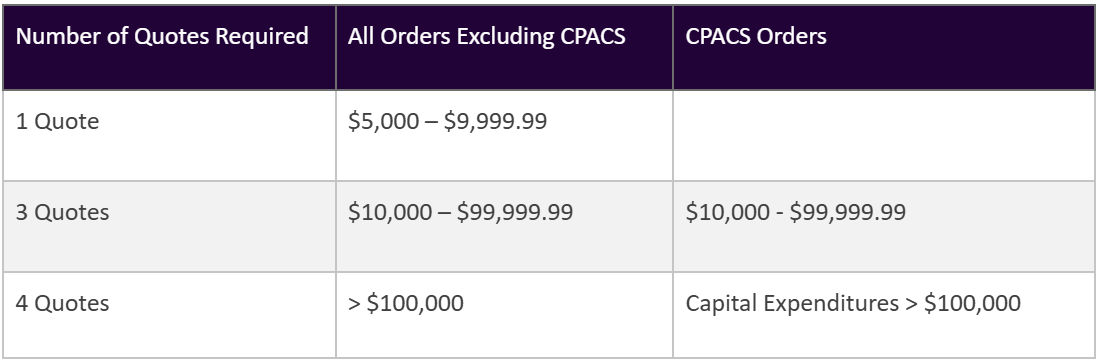
- Under $10K: No bidding required. No formal bidding process is required for works or contracts under this amount. Only one quote is required. (It is strongly encouraged that departments compare and evaluate potential Suppliers to achieve the greatest total value.)
- $10K - $99,999.99: Competitive bids are required whenever a planned purchase of goods and services is greater than $10,000. For goods being purchased that are valued greater than $10,000 but less than $100,000, three quotes are required.
- > $100,000: For goods and services being purchased that are valued greater than $100,000, a competitive bid process led by NYU Procurement is required. Contact the Category Management Team to facilitate the competitive bidding process on your behalf. (please review the Buyer and Category Teams for details)
Competitive Bidding Thresholds Using Grant Funds (Fund 24 / 25)
Please note that purchases under Fund 24/25 must comply with NYU Competitive Bidding thresholds. For guidance or questions, please contact the Tandon Office of Sponsored Programs team at TANDON-OSP@nyu.edu.
Bid Waiver
For purchases greater than $10,000 but less than $100,000, a proper justification is required when requesting for a Bid Waiver. You are required to complete the Bid Waiver Order Form in i-Buy to attach a justification with the Requisition detailing why a competitive bid process is not practical. The determination of the practicality of a bid waiver is subject to review and approval by Procurement. A Bid Waiver is not required for goods and services being purchased using a University Strategic Contract.
Justification for bid waivers may include the following:
- Sole Source: Goods or services can only be provided from one Supplier
- Inadequate Competition Available: After solicitation of a number of potential sources, competition is determined to be inadequate. Requests for quotes or bids were solicited and no responsive bids were received
- Grant Requirement: The awarding agency or pass-through entity expressly authorized non-competitive proposals, or a particular Supplier is required and specified in the award
- Highly Unique or Specialized Services: The requested services have unique qualifications which the requesting department can demonstrate that other Suppliers cannot be provided in this manner
- Proprietary Hardware/Software: The requested purchase or upgrade of proprietary software / hardware is only available through a specific Supplier
- Equipment Continuity: The equipment being requested must be compatible with existing and/or standardizing equipment which is necessary to assure interchangeability of parts
- Emergency Purchase: Procurements made in a declared state of emergency to minimize immediate risk or harm to the institution, staff, and/or students
You will need the following information to complete the Bid Waiver Order Form in i-Buy:
- Product description of the items or services being procured
- Justification for sole source Supplier
- Explanation of the reason for a bid waiver request
- Other options considered prior to determining the need for a bid waiver request
- Supporting documentation (e.g., quote from the Supplier)
NYU Payment Terms
Below are NYU's standard payment terms:
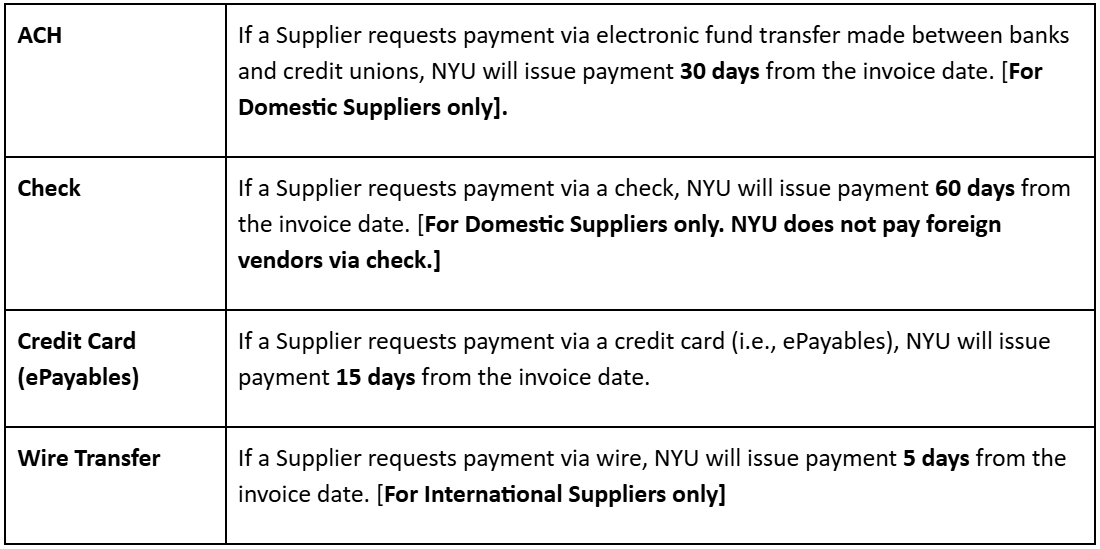
Please Note:
- When a Supplier registers in i-Buy, they select their preferred method of receiving payment
- If a Supplier wants to change their preferred payment method, they must log in to their i-Buy Supplier profile and update their payment method. Alternatively, you may submit a Supplier update request to trigger an email to the Supplier to log in to the Supplier portal and update their payment information
- Prepayment and recurring payments are to be requested in your Shopping Cart during the Requisition process
Receiving & Receipts
Receiving in i-Buy
Receiving is required and a receipt to be created in i-Buy for Purchase Orders with a total value greater than $2,500. Accounts Payable uses the receipt document created in i-Buy as a component of a 3-way matching process. When you complete the receiving process in i-Buy, you are approving an amount of money to be released for payment of invoices. You can learn more about this process on the Receiving in i-Buy page.
[Tip Sheet - Create a Receipt for Receiving Goods and Services]
Generating a PO Receipt
What are receipts?
Receipts provide an acknowledgment in NYU i-Buy that the goods or services ordered have been received. When an invoice is submitted, the system will automatically notify the Requestor to confirm receipt of the goods or services within i-Buy. There are two kinds of receipts:
- Cost Receipts: Typically used for services on non-catalog service orders and Standing Orders
- Quantity Receipts: Typically used for tangible goods
When is a receipt Required?
A receipt is required for all purchases exceeding $2,500. Please note that receipts can be entered at the time that goods or services are received.
NYU i-Buy has been configured to alert the Requestor (via email and system notification) when a receipt is required. Systematic reminder notifications to PO owner will persist until the receipt has been generated in i-Buy.
Generating a Receipt
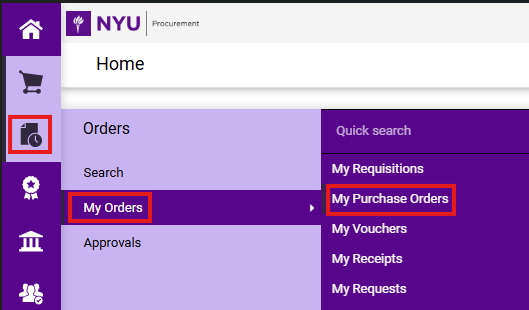
- To enter a receipt, you must start by navigating to the appropriate Purchase Order. There are several options to access a PO in i-Buy:
- Option 1: Use the search bar in the top menu bar to locate your PO by searching the PO number or Supplier name
- Option 2: Click on the Orders button on the left-hand menu, then click Document Search. Use the menu to select My Purchase Orders
-
Once you locate the correct PO, select the three dots towards the top right-hand corner of the document and select Create Receipt.
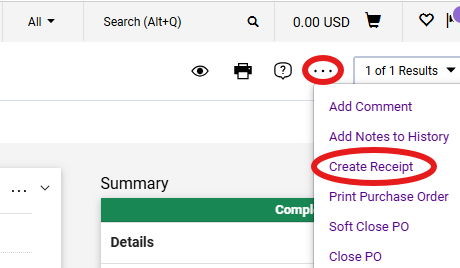
- The receipt screen is displayed in two sections: Header information and Line Item information. Header information allows the user to capture receipt details including the packing slip number, receipt address, tracking number, attachment, etc. The header information is not required.
- Scroll down to the Line Item Information section and enter the quantity or cost received.
- Quantity Receipt: Typically used for the purchase of goods to capture the total quantity of items receive
- Cost Receipt: Typically used for non-catalog services and Standing Orders to capture the total cost of goods/services received
- Once the quantity/amount received is entered, click Complete. (You must confirm the amount of goods or services that were actually received. Partial receipts are acceptable if the full order hasn't arrived.)
- A confirmation message will appear referencing the assigned receipt number.
- If receipt of an invoice within i-Buy triggers the creation of a receipt, the invoice will be submitted for payment in accordance with the payment terms NYU has with the Supplier.
Submitting Invoices & Payment Status
Submitting Invoices for Payment
Before You Begin:
- PunchOut / Catalog Orders do not require an invoice to be submitted for payment by an NYU employee. The vendor will automatically submit an invoice to NYU once the ordered item(s) have been shipped or confirmed delivered.
- Submission of invoices to nyuinvoices@nyu.edu is not required if a Payment Request Form for Special Scenario was used. These forms auto-generate a Voucher and begin the payment process once the PO is generated.
- In some cases, a Supplier might submit their invoice directly to NYU. In this case, the Department Administrator should not manually submit the invoice for payment.
Invoice Process Overview
For PunchOut / Catalog:

For Non-Catalog:

For Payment Request Forms For Special Scenarios:

Manually Submitting An Invoice For Payment
An invoice should only be submitted for payment AFTER the service has been completed and goods has been received . To ensure timely processing of payment, follow these steps:
1. Obtain The Invoice
After the work is completed or goods are received, the company or individual should provide an invoice within 30 days to the department for payment. The invoice must be on a company letterhead and include the following information:
- Supplier Name & Address (must match NYU's records)
- Invoice Number (unique identifier from the Supplier)
- Invoice Date
- Total Invoice Amount
- Detailed Description of Goods/Services Provided
- Related Ten Digit Purchase Order (PO) Number
- If the PO number is missing, please write the full 10-digit PO number (iB0000xxxx) at the top of the invoice. Without the PO number on the invoice, the payment cannot be issued
2. Prepare the Email Submission
All invoices must be emailed to nyuinvoices@nyu.edu in order to generate a Voucher within the PO in the i-Buy system and begin the payment process:
- Attach the invoice (valid attachment types are PDF, TIF, Microsoft Word (doc, docx), or JPG)
- Use the following email subject format: Invoice Submission – Supplier Name – Invoice Number
- You may leave the email body blank or add "See Attached"
The alias, nyuinvoices@nyu.edu, is an AI-powered system that scans the invoices for PO numbers and matches the PO numbers to existing POs in i-Buy. It's an unmonitored system, thus, notes or comments present in the email will not be viewed by any individual.
Please Note: Each invoice must be attached separately. It is best practice to send one invoice at a time. Combining invoices or sending multiple invoices in one email may result in the system not generating the voucher in i-Buy.
3. Sending Email / Submit the Invoice
Click Send once you have completed the above steps. You will receive an automated email from nyuinvoices@nyu.edu with the subject "Successful import of email" or "Unsuccessful import of email" (in the event of any error).
If the invoice was successfully imported, it will take 2-3 business days for the invoice to be processed and appear as a Voucher within the PO.
Payment Status
You will need the following information to check the status of an invoice:
- PO Number
- or, Invoice Number
- or, Voucher Number
How to Check Payment Status
i-Buy users can view the payment status of their submitted invoices directly in i-Buy:
- Login to NYU Home with your NYU NetID and password. Under Services, click on the "Work" tab. Scroll down and click on NYU i-Buy.
- From the i-Buy home page, use the quick search bar in the top menu to enter the PO number, or Supplier invoice number, or Voucher number. Follow the below instructions based on the information entered into the quick search bar:
- PO Number: If a PO was entered into the quick search bar, the quick search bar will show the Requisition Number, PO number, and all Vouchers (invoices) processed against the PO. Click on the PO number to view the PO.
- Supplier Invoice Number or Voucher Number: If a Voucher number or Supplier invoice number was entered into the quick search bar, the quick search bar will show the PO number and the Voucher number that was entered. Click on the Voucher number to view the Voucher and skip to step 5.
- In the PO number, click the Voucher summary tab to see all Vouchers (invoices) processed against the PO
- In the Voucher summary tab, you can see the payment status of all Vouchers (invoices). Click the Voucher number associated with the invoice whose status you are checking to see more details such as payment amount, payment terms, payment date, payment method, and chartfield.
Please Note: Review the general section to determine the pay status. If paid, review the payment information section to see how the invoice was paid (e.g., ACH, Check, Wire etc.). If not paid, review the summary section to see where the Voucher is in the approval process.
Under the General section you will be able to see the Voucher's Pay Status. A Voucher will have one of the following pay status:
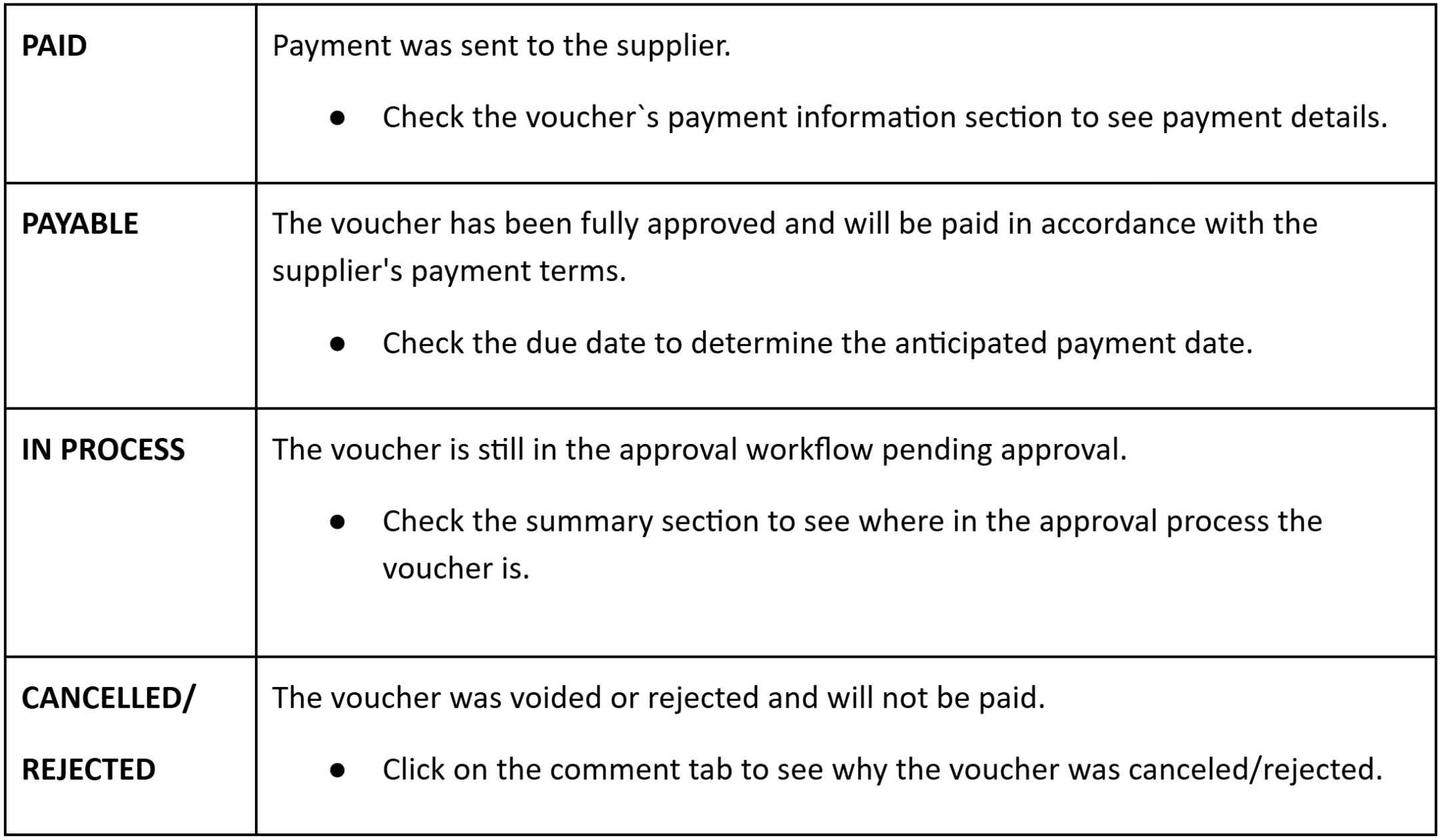
Payment Request Forms for Special Scenarios
- Guest Travel / Reimbursement Expense: Guidelines and Tip Sheet
- Honoraria: Process
- Memberships / Subscriptions / Registrations
- Non-NYU Prizes / Awards
- Royalties / Licensing [Do Not Use]
- Taxes & Visa Payments [HR Only]
- Legal [Office Of General Council (OGC) Only]
- Utilities [Facilities Only]
FAQs
Requisition FAQs
1. Can I cancel a Requisition after it has been submitted?
Yes. Navigate to your Requisition and select "Withdraw" from the available dropdown menu. Please Note: The Requisition may be in the process of being reviewed by an Approver. To limit confusion, it is advised that the Approver(s) be contacted before withdrawing the Requisition.
2. Can I copy a Requisition?
Yes. Please refer to the Copying Requisition Tip Sheet.
3. Can I add multiple Chartfields to one Requisition?
Yes. Please refer to the Splitting Chartfields Tip Sheet. The only limitation is that you cannot split Chartfields between Funds 24/25 and other Funds (i.e., Funds 10, 20, 21, 22, etc.)
4. How can I determine where my Requisition is within the approval queue?
Access "My Pending Requisitions" under your name in the profile menu. Click the desired Requisition Number, then check the "What's Next" section on the right-hand side of the Requisition summary page. Click on any workflow list to see a list of names at each approval level.
Alternatively, you can check the Requisition's "History" tab to view any changes made to the Requisition. In this tab, you can see the assigned Approver.
5. What is the difference between a Non-NYU Award and an Honorarium?
Non-NYU Awards/Prizes processed via i-Buy are payments made to non-NYU students or non-NYU employees in recognition of an accomplishment (reportable for tax purposes). A signed award letter is required.
Honorarium payments are a one‐time nominal payment made to an individual (not a corporation, business, or partnership) who is not an employee, student employee, or a student of the University, as a gesture of goodwill or in appreciation of efforts and time given to the University, for which payment was not required. The honorarium amount is determined solely by the NYU department and provided to the recipient after their efforts or time has been given to the University. If an honorarium is greater than $2,500, the Fiscal Officer is required to sign the Honorarium Form.
Tax rates are different. Honorariums are coded to 1099N-01, and Awards are coded to 1099M-03.
6. Do I need an agreement for NYU Guest Speaker?
Yes, the NYU Guest Speaker Agreement Form needs to be completed and submitted to Contract+ (TCM) for review and approval.
Purchase Order (PO) FAQs
1. Will I receive a notification when my Purchase Order has been delivered to the vendor?
Yes. A Purchase Order sent to Supplier notification will be emailed to the Requestor after successful transmission of the PO has been achieved. This option is automatically turned off in the User's profile in i-Buy. If you are not receiving this email notification, check your notification preferences in your user profile to ensure the notice is turned on.
User Profile > Notification Preferences > Purchase Orders > Prepared By - PO sent to Supplier
2. Can I attach more than one invoice per email sent to nyuinvoices@nyu.edu?
NYU Procurement recommends only sending invoices to nyuinvoices@nyu.edu with ONE attachment per email. The nyuinvoices@nyu.edu is an automated system that scans attachments for PO numbers. Multiple attachments to one email might result in an error. Therefore, sending one attachment per email is strongly recommended.
If you experience issues or have any questions, please visit the NYU Support Center by selecting the “Finance” tile, or call 212-998-1111.
3. Can I make changes to a Requisition after it has been submitted?
Yes, navigate to the Requisition and using the ellipsis in the top right corner, select "Withdraw Requisition". This will bring the document back to your Shopping Cart where you can make updates/edits and resubmit.
Please Note: The Requisition may be in the process of being reviewed by an Approver. To limit confusion, it is advised that the Approver(s) be contacted prior to withdrawing the Requisition.
4. My Requisition was returned/rejected, what should I do now?
Navigate to the history tab on the Requisition to view the comments from the Approver on why your Requisition was returned/rejected. Reach out to the Approver for more clarification or detail, as needed. If you need to update information and resubmit the Requisition, you can copy your Requisition to a new Cart to update and resubmit.
Please Note: The copy function is only available on Requisitions which have been returned. If your Requisition was rejected, you will not be able to copy to a new Requisition.
5. Who is a PO Owner?
When a Purchase Order (PO) is created in i-Buy, it inherits the individual who submitted the Requisition as the PO Owner.
Approver FAQs
1. When and why do I need to “assign a Requisition to myself”?
A Requisition can be approved without assigning the Requisition. However, assigning a Requisition is required when the request needs to be rejected, returned, or placed on hold.
The act of assigning the Requisition allows you to take ownership of the Requisition and prohibits any other Approver(s) from unknowingly approving a Requisition that you are reviewing.
2. What is the difference between returning and rejecting a Requisition?
Returning a Requisition allows the Requestor to make edits and resubmit the request using the same Requisition Number. Rejecting a Requisition cancels the requests and disallows any further edits. A rejected Requisition can be copied to a new Cart, but a new Requisition Number will be assigned. Rejections should be reserved for inappropriate requests for goods and/or services, or budget concerns.
3. What is the approval workflow for Requisitions?
Approval workflows for Purchase Requisitions (excluding Funds 24/25), will be driven by the existing Delegation of Authority matrix for each school/division and reflective of current signature authority policy thresholds:
- Level 5: Up to $5,000
- Level 4: $5,001 to $25,000
- Level 3: $25,001 to $100,000
- Level 2 & 1: $100,001 and Above
4. What is the Requisition approval workflow when using Funds 24/25?
In addition to the DoA approval outlined above, approval workflows for Funds 24/25 Requisitions will be driven by the existing Department Administrator (DA) and Principal Investigator (PI) data within FAME, with the following rules:
- For Grant POs (excluding subawards) up to $5,000, approval will be required by Dept. Admin
- For Grant POs (excluding subawards) exceeding $5,000, approval will be required by both Dept. Admin and PI
- For all subaward Requisitions and invoices, approval will be required by both Dept. Admin and PI, irrespective of the dollar amount
5. Can I edit a Requisition that has entered my approval queue?
Yes. However, be aware that changes to the Chartfield information will not re-route to Departmental Approvers that were not included in previous approval levels.
If Chartfield changes are needed, it is recommended that the Requisition be returned, corrected, and resubmitted to invoke the appropriate departmental approvals.
Tip Sheets
Requesting a New Supplier & Supplier Registration:
- Requesting a New Supplier
- Honoraria and Expense Reimbursement
- Companies / Organizations
- Independent Contracts and Individuals
Order Forms:
- Submitting a Standing Order
- Submitting a Subaward
- Submitting a Catering Form
- Submitting Venue/Events
- Submitting a new Request for Temporary Staffing
Additional:
- Submitting a Requisition with a Foreign Currency
- Managing your Shopping Cart
- Splitting Chartfield on a Requisition
- Submitting a Bid Waiver
- Submitting a PunchOut Order
Receiving & Approving Requisitions:
- Receiving Goods & Services
- Approving a Requisition
- Requisition Approvals via Email
- Returning/Rejecting Requisitions
- Managing Your Approval Queue
Contracts:
- Submitting a Contract Request
- Navigating the Contracts+ Module in i-Buy
- Travel, Event, and Entertainment Contract Request
- Requesting a Contract Renewal
- Requesting a Contract Amendment
- IT Assessment in i-Buy Contracts+
- IT Assessment in i-Buy Contracts+ FAQs
- Vendor Contract Refresh Resource One Pager
Accounts Payable:
Training Resources:
Please Note:
- Starting November 12th, 2025, support for Asset Management, DSG, Insurance Programs, RFAC, and Tax Compliance is moving to the NYU Support Center
- Starting January 26th, 2026, support for all Finance inquiries and assistance are moving to the NYU Support Center
- Starting January 26th, 2026, the Tandon Finance email (TandonFinanceOffice@nyu.edu) will be integrated into ServiceNow to manage and track your support requests in one place via the NYU Support Center. Any email sent to TandonFinanceOffice@nyu.edu will create a case in ServiceNow. You shall receive an automated response informing you of the same.
Notifications and updates on your case will be sent from ServiceNow. You can check on the status of all your cases through the NYU Support Center. If you have any questions about your case, support will be available by calling FinanceLink at 212-998-1111